Monday, 30 July 2012

How to Make Your Wired Printer Wireless

Want to share your printer with every other computer in your home network? Wireless Print Servers let you print from anywhere without USB cables.


Your laptop and desktop computers are connected over a Wi-Fi network but you still need a physical USB cable to connect your wired printer to one of these computers.
If you find your existing setup a bit inconvenient and are looking for ways that will help you print documents from the same printer but wirelessly, here are some choices.

Turn any Wired Printer into a Wireless Network Printer

More new printers these days are network enabled so you can just attach them to your home network using the Ethernet port (or over Wi-Fi) and print from any other computer in the home network. However, if you are using an old USB based printer, you can use a wireless print server to turn that wired printer into a wireless one.
Wireless print servers are small devices (they look like mini routers) that have a USB port. You just have to connect the printer to this wireless print server using a regular USB cable and the printer will then become available to all other computers in your wireless network.
Here’s an overview of some of the most popular wireless print servers:
 Wireless Print Server - Netgear
Netgear WGPS606 – This is both a wireless print server and a wired router.   It has two USB ports so you may use the device for sharing up to two printers over the wireless network. The same print server can also help you connect four different computers to the network even if they are not fitted with wireless network adapters. Costs around $60.
Linksys Print Server – This wireless print server from Cisco makes it easy to access all the functions of your all-in-one printer over the wireless network.   The Print Server can connect most USB based multifunction printers to your network using an Ethernet cable or Wireless-G. The print function works like any other print server but for scanning or copying, a user can request exclusive use of that function until his task is complete. Costs around $80.
HP Wireless Kit – If you like to turn your wired HP printer into a wireless one, the HP Wireless Printing Kit could be a good choice as it integrates fully with all features of your printer, including print, scan, and fax. It comes with a USB transmitter that you need to insert into the computer for wireless printing. The advantage is that you can print wirelessly even if you don’t have a wireless network. Requires Windows and costs around $75.
If you don’t have a wireless network at your place, you can consider getting a Bluetooth adapter for your printer. You need to attach the Bluetooth dongle to your computer and print wirelessly though the range will obviously be limited. Check your printer manufacturer’s site if they provide a Bluetooth adapter for your printer model.

Should You Buy a Wireless Print Server?

Before you invest in a wireless print server for your printer, consider this.
Today, most multifunction printers include wireless capabilities and can therefore connect directly to your wireless network without any additional hardware. Some of these printers are available in the $100 range. With this in mind, does it make more sense to purchase a new printer instead of buying a wireless print server for your existing printer?
Here are some possible scenarios:
  • If your current printer is relatively new and you paid more than $100 for it, then it may be more economical for you to simply purchase a wireless print server instead of purchasing an entirely new printer with the same features.
  • If a wireless printer in not available in your area, you can buy a regular USB based wired printer and get someone to ship you a wireless print server. This would incur less shipping costs than ordering a wireless printer.
  • Some wireless print servers can be used as wireless routers. If you do not have a wireless router at your place, you can opt for a wireless print server as it will not only turn your printer wireless but you also get to setup a wireless home network.                                                                                          
You can follow us on Twitter or join our Facebook Fan Page for more updates like this and You can also ask a problems related to computers or technology on Ask Tech Inspire+ and get your solutions faster.
Share This Post If U Like!!!

A Hidden Feature of Google Handwriting

Google Handwriting recognition lets you write search queries on your mobile phone or tablet without using the keyboard. It can recognize shapes as well.
Google recently added handwriting recognition capabilities to their web search interface thus giving users an option to scribble search queries without opening the keyboard. Once you turn on the Handwriting mode, the entire Google page turns into a scratch pad – you can write anywhere on the screen and Google will instantly convert your freehand drawing into digital text.
The results are accurate and though the conversion happens on Google’s servers, you won’t notice the delay. Google suggests using block letters but cursive writing works as well.
You can use Google’s handwriting search on most touch-screen mobile phones and tablets but if you are on the desktop, you may change the user agent of your browserto iPad (or Android) and Google will then offer the Handwriting option on your desktop as well.


How Google Handwriting works?

When you draw a shape on the Google page, the path is captured in an array of X, Y points which is then sent to Google’s IME (Input Method Editor) API as a POST Request. It returns a list of possible suggestions (for instance, if you draw a round shape, IME may interpret that as “o, 0, O” while a straight line can be interpreted as “l, I, i, 1″) and one of them is added to the Google search box.

The Undocumented Feature

The JavaScript file associated with Google’s Handwriting feature reveal a hidden feature – other than letters and digits, you can also draw shapes and Google can convert some of them into words. For instance, if you draw a “heart” shape on the search page, Google will render that as the word “heart.”
When you draw a heart shape, Google’s IME returns the Unicode equivalent of the heart character and Google, at the client side, converts that symbol into a word.
Google Handwriting Recognition includes similar logic for emoticons, check marks, copyright and trademark symbols but they aren’t working at this time. It does however offer a strong hint that Google Handwriting could be coming to other Google products – like Gmail and chat – because one rarely write smileys and frowning  faces in the search box.
You can follow us on Twitter or join our Facebook Fan Page for more updates like this and You can also ask a problems related to computers or technology on Ask Tech Inspire+ and get your solutions faster.
Share This Post If U Like!!!

Sunday, 29 July 2012

Let’s Not Get Too Excited About Google Fiber… Yet


Google Fiber logoEarlier this week, Google provided details of its Google Fiber rollout in Kansas City. To hear some blogs tell it, it’s like the heavens will open from above and grant Kansas City blazing-fast Internet and competitive TV packages that will solve all the problems locals have with their current cable provider or ISP. But see, it’s not that easy. Google faces a number of challenges as it transitions to become an ISP. Here’s why Google’s grand experiment laying fiber might not be all the it’s cracked up to be.

The rollout problem

Don’t get me wrong — from a cost standpoint, Google Fiber sounds pretty amazing. It offer Gigabit speeds at an attractive price point, which other ISPs probably can’t compete with. And it would be great, if it were available today. But rolling out fiber is a complicated process, and most Kansas City residents anxious for some high-speed competition probably have a long wait ahead.
Google is doing some interesting things in trying to expedite its fiber installations. It has separated the city into “fiberhoods” of 250-1,500 households a piece, and is asking potential subscribers to express their interest and pre-register, essentially reserving a spot in line when installations begin. Google will then use that interest data to determine which fiberhoods it will tackle first. All of that is designed to help concentrate installations close to one another, at least during its initial rollout, which has the potential to speed up the process.
But it will still be a very, very slow process. On September 9, Google will determine its fiberhood rankings, and which reached the goal needed to get fiber installed. Once that’s done, Google has the arduous task of actually making installations. How long will that take? Let’s put it this way: Google estimates that it will be able to reach about 50 percent of fiberhoods by mid-2013, with its full rollout in Kansas City completed by the end of next year. That means residents who register today could wait as long as 18 months before they actual get fiber installed.

The installation problem

Now let’s talk about how installations will actually work. Most people today kind of take for granted the coax that they’ve had installed forever, even if they hate their current ISP. But ask anyone who transitioned from their local cable company to IPTV services from Verizon or AT&T over the last few years: installing fiber isn’t a simple process. Getting fiber to a new house or multi-tenant unit involves connecting fiber to the home, installing new equipment in the home, and running lines throughout the home.
And let’s keep in mind, cable technicians — the people who actually do this stuff — aren’t just born. There’s all sorts of training that they go through to learn how to hook up and subsequently wire a home, and it’s doubtful that Google is just going to train a bunch of newly minted techs to take care of its high-profile fiber rollout.
Nope, Google is going to recruit and hire already-trained techs away from its local cable competition. Which means that the current cable guy you complain about when he shows up late to an appointment is probably going to be the same guy who shows up to do your Google Fiber installation. That brings us to…

The customer service problem

Google has never had a great record of customer service, mainly because it’s never had to. Most of its services are powered by the Internet and take a web-centric view of customer relations. They put up a FAQ, create some automated feedback forms, and maybe answer the occasional email if things get really bad.
Remember Google’s failed attempt at selling its Nexus One smartphone direct to consumers? It’s lack of customer service was a key reason it failed to get much traction in that attempt. The Wall Street Journal reports that Google has massively beefed up its phone customer service for its Google Play store and a new effort at direct device sales.
But becoming an ISP is a very high-touch business. The biggest reason most people hate their current ISP or cable company isn’t that their Internet isn’t fast enough — it’s that the customer service consistently sucks. And it’s not clear how Google plans to offer a better alternative, especially in a field that it has consistently done a poor job in.

The content problem

Along with its Google Fiber broadband business, the company is also offering a pay TV add-on, Google Fiber TV, that will offer up an alternative to local pay TV packages at a pretty competitive price. There are a lot of cool features — including a 2TB DVR and the ability to record up to eight programs at once. It also is fundamentally changing the way that users interactive with their TVs, by offering up the Nexus 7 as the standard TV remote.
But there’s one thing that Google Fiber TV is missing — content. While it boasts more than 116 channels, the current offering is missing key networks like ESPN, Disney, AMC, TBS, TNT, HBO, and the like. I’ve spoken with some network people, and it appears that Google is negotiating with all of them, in an effort to get a more complete bundle together. It could be that this last piece ends up being a footnote, as it’s entirely possible that by the time the service gets real penetration, Google will have those other content providers on board. For now, though, Google still faces the problem of striking deals with more providers.
That’s not to say that Google Fiber doesn’t sound awesome. But really, the devil is in the details. And Google faces a lot of logistical and operational challenges in the rollout. We’ll see how it handles them.


You can follow us on Twitter or join our Facebook Fan Page for more updates like this and You can also ask a problems related to computers or technology on Ask Tech Inspire+ and get your solutions faster.
Share This Post If U Like!!!


Making Money By Writing Firefox Extensions

PDF Download Firefox extension has been downloaded more than 5.5 million times and is providing more than half a million free PDF-to-HTML conversions per month. Nitro PDF Software has stepped in to allow the PDF Download service to remain free by providing the necessary bandwidth and hardware.


There’s money in writing Firefox Extensions, the free add-ons that add new functions and features to the already powerful Firefox Browser. PDF Download is one such example.
Download PDF in Firefox
When you click some link on a web page that points to a PDF document, the default behavior is that the browser starts to download the PDF file and loads it inside the embedded Adobe Reader. This can sometimes freeze Firefox especially when the PDF is large.
PDF Download extension solved the problem by letting users decide the next action if they accidentally clicked a .pdf link. The extension also offered PDF to HTML conversion very similar to Gmail.
Nitro PDF, who develop a PDF writer similar to Adobe Acrobat, got interested andacquired this Firefox extension because it allowed them reach a very targeted audience who have already expressed their interest in PDFs by downloading the “PDF Download” extension.
The extension remains free and is a recommended download by Mozilla. It has so far been downloaded more than 5.5 million times and is providing more than half a million free PDF-to-HTML conversions per month.
A win-win situation both for end users and Nitro. We may see such a trend catching up in 2008 where product companies grab the popular extensions from respective Firefox developers to make their presence felt in the community.
You can follow us on Twitter or join our Facebook Fan Page for more updates like this and You can also ask a problems related to computers or technology on Ask Tech Inspire+ and get your solutions faster.
Share This Post If U Like!!!


Master your Web Browser’s Search Box

You can use the browser search bar of Chrome, Firefox and IE to do more interesting things like fixing grammatical errors, storing long strings of text or even for removing formatting from clipboard content.


The search box is located in the upper right corner of IE and Firefox while Chrome has this thing integrated in the address bar itself. The function is however the same – it offers you a convenient way to search using your favorite search engine.
Other than search, there are some more interesting uses of the search bar as well.
1. Avoid Spelling Mistakes
spelling suggestionsIf you writing an email inside the browser and are unsure about the spelling of some word, you can simply type that misspelled word in the search box.
Google will immediately offer you the correct spelling as a query suggestion that you can copy-paste into your email message.
2. Clean-up Formatting from Copied Text
When copying content from a web page into an email message, you can first paste that text into your browser’s search box and then copy it to the clipboard.
This will automatically convert the rich text into plain text removing all the hyperlinks and other formatting that you don’t want to add to your email message.
3. Correct Grammar Errors
The search box can also help you fix grammatical errors in your sentences.
grammar errors
Say you sometimes get confused between words like ‘affect’ and ‘effect’ or between ‘advise’ and ‘advice.’ In that case, just type the whole sentence in the search box and it should save you from making that silly grammatical error again.
4. Search Box as a Notepad
The search bar can be used like a notepad as it automatically stores all your search queries until you clear them manually.
This is so useful because you can easily save pieces of text in the search bar that you may repeatedly need inside your browser later.
For instance, I have an airway bill number of a package that I can store in the search box by performing a search only  once. Later, when I am on the shipping company’s website to track the package status, I can easily retrieve that number by simply typing the first few characters in the search box – there’s no need for me to hunt for the email that has that tracking number.
5. As your Password Manager
save password
Ever since my Gmail account got hacked, I have switched to a very long and complex password. Now it may be hard for someone to guess that password but it is  equally hard for me to type that lengthy string correctly especially when everything in a password field is  represented as asterisk characters.
I therefore store  this ‘complex password’  in the search box. Whenever I am need my my Google Account credentials, I simply type the first few characters of the password in the search box, the string appears in the drop-down from where I can copy-paste it into the password box. Here’s a demo:


This method saves time but, obviously, it is not recommended for people who work on a shared computer.


You can follow us on Twitter or join our Facebook Fan Page for more updates like this and You can also ask a problems related to computers or technology on Ask Tech Inspire+ and get your solutions faster.
Share This Post If U Like!!!

Prevent your Google Mail from Getting Rejected as Spam

This guide describes how you can authenticate your Google Apps domain with SPF and therefore prevent ISPs from marking your legit Gmail emails as spam.


Spammers Forge Email Address

The majority of email spam on the Internet originates from forged addresses because SMTP allows any computer to send emails claiming to be from anyone.
For instance, a spammer can put your email address in the “From” field when sending out bulk emails and the recipients may therefore incorrectly assume that the mail is coming from you. If any of them chooses to report that spoofed message as spam, its your email address that will be affected in the long run.

Authenticate your Google Apps Domain with SPF

To prevent spammers from forging the “From” field of their bulk messages with your email address, you can consider using a validation system like SPF (short for Sender Policy Framework). It basically allows the email recipients to verify that the server sending the email is authorized to send email on behalf of the domain that is found in the sender’s email address.
Let me explain. If the IP address of my mail server is 1.2.3.4, I can add an SPF record to my web domain saying that all messages coming from this particular IP address. ISPs can match the mail server address mentioned in my domain’s SPF record against the one present in my emails and accordingly pass or bounce messages to their customers.

How to Implement SPF in Google Apps and Gmail

Let’s say you have a Google Apps domain at xyz.com and you are using the Gmail service for your incoming and outgoing email.
To add an SPF record to your domain, first open the page from where you can edit your domain’s DNS records. Then add a new DNS record of type “TXT” and set the value as
v=spf1 include:_spf.google.com ~all
Save the changes and this new DNS record should propagate across the Internet within the next few hours. If you are interested in the technical details, here they are are:
The entry _spf.google.com means that any server that is allowed to send mail from the IP addresses of Google Apps mail servers is also allowed to send mail from labnol.org. The ~all directive means that email messages that are not sent from an approved server should still be accepted but may be subjected to greater scrutiny.
How to Check SPF Records of your Google Apps Domain
Check DNS RecordsTo ensure that your SPF record has been successfully added to your web domain, open your command prompt – go to Windows Start Menu -> Run and type cmd.
Nex run the nslookup command for your Google Apps Domain as shown below:
c:> nslookup
c:> set query=txt
c:> xyz.com (replace xyz.com with your Google Apps domain name)
If the answer contains the google.com string that you have added in the previous step, it indicates that SPF is successfully enabled for your Google Apps / Gmail.
Verify SPF Records with an Email Message
Finally, to verify that your SPF record is live and working, just send a blank email message to spf-test@openspf.org and check-auth@verifier.port25.com from your Gmail address.
You’ll get an instant reply with the results of the SPF check. If you see a “pass” against the SPF check, that means things are in place and it should prevent your Gmail messages from getting rejected as spam because now the recipient can distinguish forged emails from the real ones with a simple check.
You can follow us on Twitter or join our Facebook Fan Page for more updates like this and You can also ask a problems related to computers or technology on Ask Tech Inspire+ and get your solutions faster.
Share This Post If U Like!!!


Saturday, 28 July 2012

Simple Solutions to Common Windows Problems

Learn about some free software utilities that will help you fix the most common Windows problems. Compatible with Windows XP, Vista and Windows 7.


Learn about some free software utilities that will help you fix the most common Windows problems. They are all compatible with Windows XP, Vista and Windows 7.

Fix Windows Problems with Free Tools

Q1. I am trying to delete a file from my desktop but the computer won’t let me do that. Instead, it throws me an error message saying that the file /folder is in use by another program or user.
Microsoft WindowsA: You can either reboot your computer in Safe mode to delete that file or, if you want something more simple, get Unlocker. It’s a free utility that will let you close all the processes that have possibly locked the file and once they are closed, you can then safely delete the file.
Q2. I am trying to play a video file on my computer but the media player says that I am missing certain codecs.
A: You can use a tool like Video Inspector to determine which audio and video codecsare required to play the video file on your computer. Alternatively, you can download a codec package like the K-Lite Pack that will let you play virtually any audio and video format on your computer.
Q3. I am running out of disk space on my Windows computer. How can I remove all the unnecessary files from the computer and recover some disk space?
A: There are three things you can do here:
  • Open the Run box and type “cleanmgr” to open the built-in Disk Cleanup utility. It will remove all the temp files and the unnecessary system files that you no longer need.
  • Use WinDirStat to determine where all your disk space has gone. Sometimes files are hidden in sub-directories that you can safely move to other drives or even delete them permanently.
  • Use Duplicate Cleaner to identify and delete all the duplicate files on your hard drives. You can move the duplicates to the recycle bin or, if you want to play safe, to any another folder from where they can be easily recovered.
Q4. My computer takes lot of time to boot-up. I checked the “start-up” folder in the Windows start menu and there aren’t any applications out there.
A:  Type “msconfig” in the Run box to open the “System Configuration” tool and then switch to the “Start-up” tab. Disable all the programs that you don’t need to run during start-up. If you are a power user, you may also switch to the “Services” tab and disable all the unnecessary services.
Autoruns is another excellent utility that shows you what programs are configured to run during system bootup or login.
Q5. I am trying to uninstall a program from my computer but the standard add-remove programs is not letting me through.
A: You can use the free Revo Uninstaller utility to remove every single trace of any program from your computer. Revo can also remove entries from the Windows Registry that may have been left by previous un-installation routines.
Q6. My Windows crashed with a “Blue Screen.” Why?
A: You really need to get in touch with a geek to debug the cryptic Blue Screen errors (aka “Blue Screen of Death”) but if you are lucky, a free utility called BlueScreenViewcan provide vital clues. Blue Screen View will scan the Windows dump files to determine the device drivers that possibly caused the crash.
Q7. It takes ages to copy files in Windows from one folder to another. The situation is marginally better in Windows 7 (over Vista) but still, is there a way to copy files faster?
A: You can use an external file copying utility like TeraCopy or even RichCopy – they’ll not only copy /move files across drives faster but you can also resume broken file transfers (similiar to FTP operations).
Q8. I think I deleted a file by mistake. Can I recover it?
A: Recuva is a free software that will scan your hard drives, USB stick and other external drives for any deleted files that it can possibly recover. It may not work in all cases especially when you securely deleted a file.
Q9. Every time I copy something new to the Windows clipboard, the previous content gets erased. Can I make it permanent?
A: You can use Ditto, a free utility that sort-of adds memory to your Windows Clipboard. You can copy anything to the clipboard and it will stay there as long as you want.
Q10. How do I protect files and folders on my computer?
A: While there are free tools like Hide Folder that let you easily protect files and folders with a password, use TrueCrypt if you want a more secure solution. The obvious downside with a program like TrueCrypt is that if you forget the password, it is nearly impossible to retrieve the protected files.
You can follow us on Twitter or join our Facebook Fan Page for more updates like this and You can also ask a problems related to computers or technology on Ask Tech Inspire+ and get your solutions faster.
Share This Post If U Like!!!


How to Bring a Newspaper or Magazine Clipping Into Your Blog Without Scanner

How do you share an excerpt from some printed newspaper, tabloid or magazine story with your blog readers without using a scanner ?

The alternate method requires either a cell phone with camera or a normal digital camera. Photograph the document, email the image to qipit website for cleaning and then extract the text from this cleaned image using SimpleOCR, a free word-recognition software.

Here's the complete workflow:

1. Place the book / newspaper / magazine page on a flat surface and photograph it. Keep a steady hand and make sure Flash is turned off else the final image may appear to be washed out.

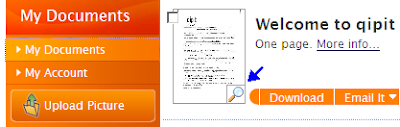
2. Now upload that photograph to qipit.com via web or email. Qipit, a free service, will straighten the image and create a much cleaner and readable document from that picture.


Open the MyDocuments folder in Qipit.com and download that converted file as JPG by clicking the document preview icon.

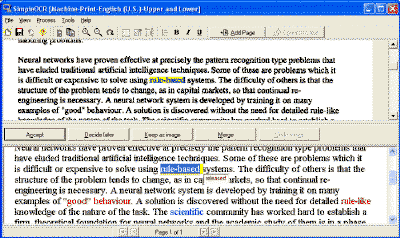
3. To extract text from this JPG file, we will use a free software called SimpleOCR. The OCR software will recognize the words in the JPG image and generates a text file. You can copy-paste this text in your blog posts or anywhere else.


Alternatively, if you have a small budget, consider investing in a OCR screen captureprogram like Kleptomania, SnagIt or CaptureText. These programs can easily capture and recognize text from image files and even PDFs.

We could have also done without converting the JPG image into editable text. But it's generally a bad idea to display text as image in your webpages - neither search engines can read that information nor do you have control over the format or layout of the text.


You can follow us on Twitter or join our Facebook Fan Page for more updates like this and You can also ask a problems related to computers or technology on Ask Tech Inspire+ and get your solutions faster.
Share This Post If U Like!!!

Related Posts Plugin for WordPress, Blogger...
Powered by Blogger.